How to create Facebook Ads with WhatsApp button , Optimize Your Facebook Page Preview in the News Feed , Easily Create Videos From Blog Posts

10 of the Best Tools to Monitor Your Online Reputation

The ability to track what people say about you online has several benefits.
You can leave timely feedback on comments about you. It can help improve your products and services.
Most of all, monitoring what people say about you online will help you maintain a good reputation.
Here are 10 tools that can help you monitor your online reputation, irrespective of your niche.

1. Google Alerts
Google has several valuable free tools for marketers and SEO pros, and Google Alerts is one of them. If you’re a seasoned marketer, then you probably already know and use it, either for monitoring your brand or for content creation.
Simply enter your company name the same way you’d enter terms in your niche you want to get alerts for.
For example, this is an alert for “search engine marketing”:
You’ll get email notifications of your mentions via Google’s database, based on your preferences: as they happen, at least once a day, and at most once a week.

2. Social Mention

Social Mention monitors more than 80 social media sites, including Facebook, Twitter, and YouTube.
The results also display the following information to help you measure, monitor, and improve your brand’s reputation:
·         Strength: The likelihood that your brand is discussed on social media.
·         Sentiments: The ratio of positive mentions to negative mentions.
·         Passion: The likelihood that people talking about your brand will do so repeatedly.
·         Reach: The number of unique authors who write about or mention your brand.
Here’s what it looks like:

3. Trackur

Trackur calls itself the “broadest social media monitoring” tool — a debatable claim. In trying to live up to such a lofty promise, it has several features to help you monitor your brand online.

Trackur offers full monitoring of all social media and mainstream news sites, insights like trends, keyword discovery, and influence scoring.
For example, this is what the dashboard looks like when I type in the keyword “Facebook.”

Additionally, if you offer social media monitoring as a service to clients, you can pay to customize your dashboard with your logo, URL, and your own colors.

4. SentiOne

SentiOne helps you to pay attention to what your customers or others generally are saying about your brand. With SentiOne, you’ll get access to not just real-time data but historical data too – what people may have said about your brand in the past before you began using SentiOne.
You can track mentions of your brand, social profiles, or other keywords.

If you feel you’ll experience information overload, since SentiOne scours thousands of web sources to find mentions of your brand, you can easily filter the number of keywords you’re tracking.
Plus, you can filter results into positive or negative mentions, where the latter can help you act quickly to avert crisis where necessary.

5. Reputology

Reputology is a review management and monitoring platform for multi-location businesses. Put simply, it helps businesses manage and monitor reviews online.
Apart from social media sites, you can “listen” to what customers are saying about your site from industry-specific review sites in the hospitality, dining, healthcare, fitness, and real estate niches.
To ensure you handle negative reviews efficiently, Reputology converts them into customer service tickets.

6. Review Push

This online review management software helps businesses with multiple locations to monitor social media and popular review sites (e.g., Facebook, Yelp, Google, Yellowpages, Foursquare).

The best part isn’t only that you’ll get all reviews from any site in one place, but when you set up email alerts, you can respond to any review, positive or negative, directly from your inbox with Review Push.
You can also see the review sites on the web or in your industry that your business is not yet listed on. Then Review Push ranks your stores’ review performance online so you can easily see which store should improve its product or service delivery.
If you’re wondering how you’ll get reports from multiple locations, there’s multi-level reporting where you can get reports from corporate, regional, or store level.

7. Chatmeter

Chatmeter was designed to help companies collect and analyze customer feedback and improve customer experience for multi-location brands and agencies.

It notifies you via email of any reviews found on over 20 local search and review sites. In addition, you’ll get notifications when there’s new content about your brand.
Chatmeter has tools that enable you to spy on your local competitors to see how you stack up against them and what you can learn from their activities.
Their widget allows you to share reviews from external sites on your website and store’s pages. And if you create a new profile on a listings’ site, your profiles on other listings sites are automatically updated with any current information.

8. Reputation Ranger

Created for four niche industries — restaurants and bars, hotels and travel, automotive sales and services, and plumbers and home contractors — Reputation Ranger monitors Facebook and industry-related sites to create alerts and reports.

Broken down by niche, it comes to:
·         15 websites plus Facebook in the hotel and travel niche.
·         12 websites in the restaurant and bar niche.
·         9 websites for plumbers and other contractors.
·         12 auto-related review websites and blogs.
So you’ll largely get real-time monitoring and alerts of the review sites that matter most to your business, depending on your niche.

9. Reputation Health

If you have a medical practice, or you offer SEO and other online marketing services to medical practices, you may need Reputation Health.

It offers reputation management and online review monitoring for physicians. It monitors 23 review sites related to the medical practice, including DrScore, HealthGrades, UcompareHealthcare, and Vitals.
The software collects online mentions and reviews of what patients are saying about your practice and sends you email alerts.

10. Meltwater

What started as a press clipping service that scanned news sources to get keywords relevant to customers has since evolved into a full-blown media monitoring tool.

Today, Meltwater goes beyond press monitoring by adding social media listening into the mix with real-time analytics. It still offers the largest global media database, so you can be sure you’ll see all your mentions in the news media too.
If you’re keen on who’s talking about your competitors or where they’re getting features, or how many mentions they’re getting daily, weekly, or monthly in comparison to yours, you can track that via Meltwater too.
While you can see your reports and analytics from your Meltwater dashboard, you can also transform these reports into presentations directly from the dashboard and also share them with internal teams.

Conclusion

You can manually perform searches for your brand’s name on search engines or social media sites, but you’ll likely find a handful of results at best. Not to mention the sheer drudgery and valuable time you’ll need to spend on such an undertaking daily, weekly, or monthly.
The tools above will help you more easily and efficiently monitor your online reputation. Choose one that works best for your brand.

Share:

How to Create a Facebook Ad That Works With WhatsApp Business

Wondering how to create a Facebook ad that integrates with WhatsApp Business?
In this article, you’ll discover how to set up a WhatsApp Business account and use Facebook ads to let WhatsApp users call or message your customer support team with a single click.

Why Combine Facebook Boost Posts With WhatsApp Business?

WhatsApp has more than 1 billion daily active users. Many small business owners use the platform to handle orders, address customer service inquiries, and manage customer relationships. However, the process can be burdensome through a personal account.
That’s where WhatsApp Business comes in. It allows you to personalize your business brand on the platform and stop using a personal phone number to communicate with your customers. WhatsApp Business initially rolled out in Indonesia, Italy, Mexico, the UK, and the U.S., but users in most other countries should be able to download it now.
The app is Facebook’s first attempt to help small- and medium-sized businesses improve their customer service on WhatsApp. You can create a business profile with relevant information for your customers such as contact information, a description, a business category, and more. You can also set up automatic messaging and create custom labels to organize conversations.
Set up a business profile in WhatsApp Business.
In addition, Facebook is rolling out the ability for businesses to send traffic ads to their WhatsApp number by boosting a post. When users click the Send Message button in the ad, WhatsApp opens on their mobile device where they can chat directly with the business. When the business receives the message from the person who clicked the ad, they can start a conversation.

#1: Set Up a WhatsApp Business Account

WhatsApp Business is free and currently available for Android users only. You can download the Android app from the Google Play store.
After you install the app and agree to the termsenter a phone number for your account. It must be a phone number that can receive messages via SMS. Keep in mind that you can’t use the same phone number for both a WhatsApp personal and business account.
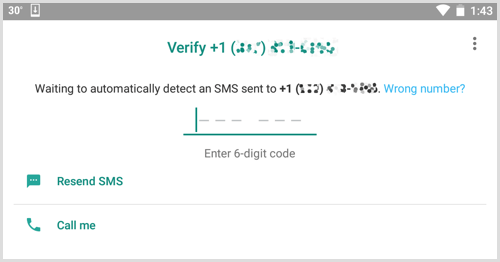
WhatsApp Business will then send an SMS message to your phone. Enter the six-digit code in the app to verify your number.
Enter the verification code you received in WhatsApp Business.
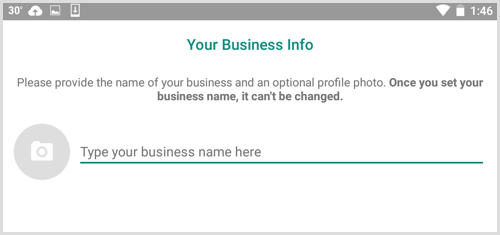
Next, type a name for your business. WhatsApp has some guidelines for creating a business name. Keep in mind that you won’t be able to change the name at a later date. When you’re finished, tap Next.
Type your business name on the Your Business Info screen in WhatsApp Business

#2: Fill Out a Profile for Your Business

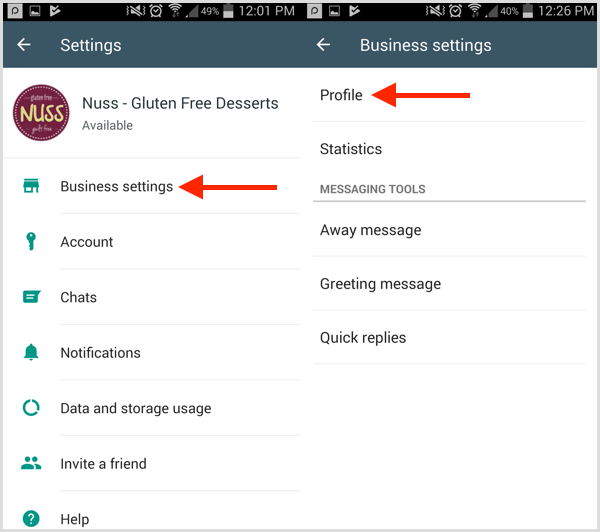
Once you’ve created an account for your business, you’re ready to set up your profile. Tap the menu icon (with the three dots) in the upper-right corner of the screen and select Settings. On the Settings page, navigate to Business Settings and then select Profile.
To set up a profile in WhatsApp Business, tap Business Settings and then Profile.
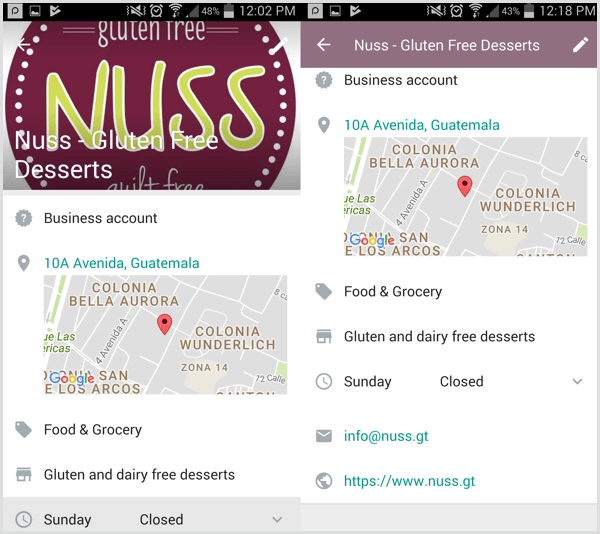
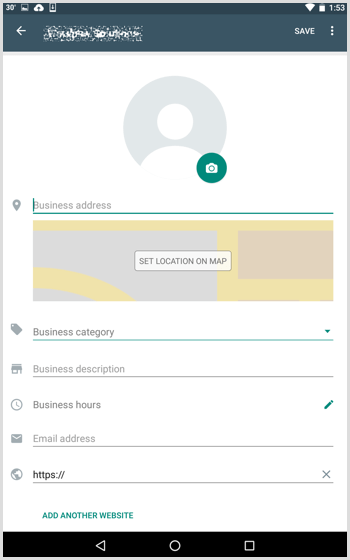
When you fill out your business profile, include information that will be helpful to customers and prospects such as a business description, URL, email address, and location. When you’re finished, tap Save at the top right.
Fill in the details you want to include in your WhatsApp Business profile.
Now you’re ready to start using your account, and interacting with customers and prospects.

#3: Set Up Automated Responses for Commonly Asked Questions

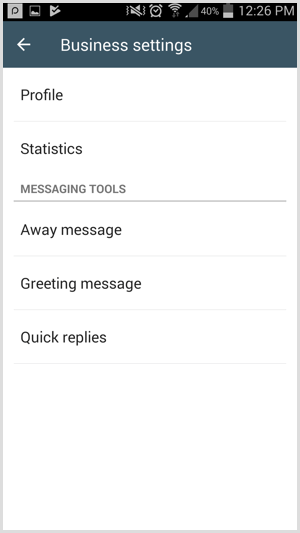
In Business Settings, you’ll find options to set up quick replies, and away and greeting messages. Setting up automated messages helps you improve communication with customers and provide the information they’re seeking.
Access Messaging Tools on the Business Settings page in WhatsApp Business.
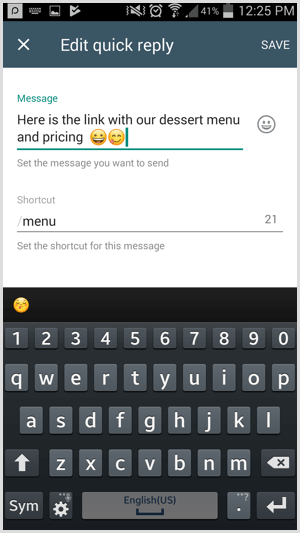
For example, you can send automated links with menus and orders, or provide other key information that customers often request.
Set up a quick reply on the Edit Quick Reply page in WhatsApp Business.

#4: Create Labels to Organize Conversations

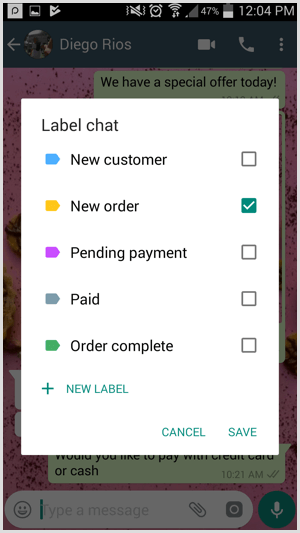
Conversation labels are a handy feature that allows you to organize your messages with current customers. Using your own custom labels lets you move conversations along your sales funnel and have a process in place for your customer service team to manage conversations on the platform.
For instance, if you’re a retailer, you might use labels to identify which customers you need follow up with and where they are in your funnel. If you’re a real estate broker, labels can help you better organize leads.
Create custom labels in WhatsApp Business.
Tip: Keep in mind that WhatsApp business accounts also have the option to use WhatsApp Web on desktop to receive and reply to customers. If you have multiple people on your customer service team, WhatsApp Web may be a more effective way to respond to customers than the mobile app.
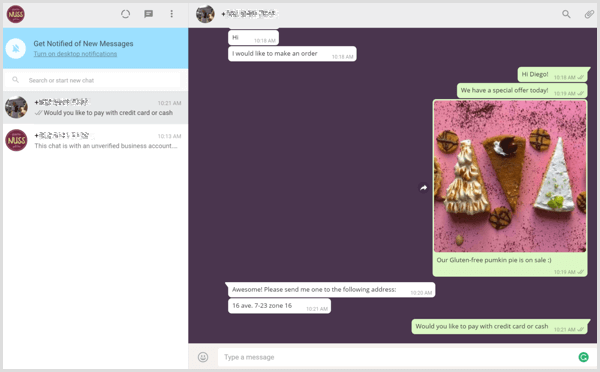
Manage business conversations using WhatsApp Web.

#5: Create a Facebook Boost Post to Promote Your WhatsApp Channel

Facebook is starting to roll out a new ad unit that combines Facebook with the WhatsApp platform. When you boost a post from your Facebook page or group, you have the option to add a click-to-WhatsApp messaging button.
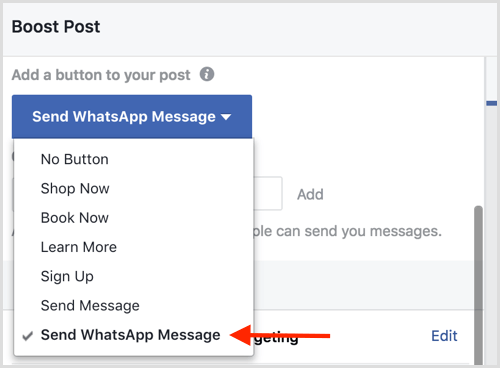
Select the Send WhatsApp Message option when you boost a Facebook post.
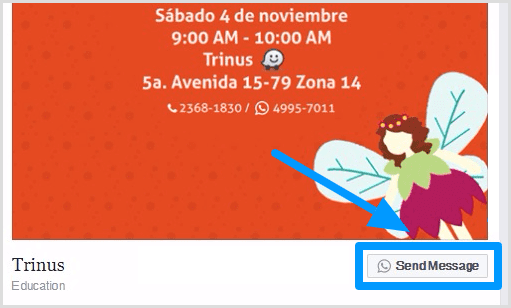
In the ad, the Send Message button will show the WhatsApp logo.
The Send Message button for your Facebook ad shows the WhatsApp logo.
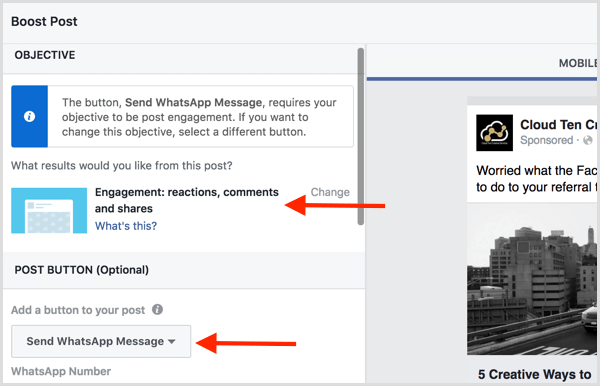
To set up this type of ad, open the post you want to use and click the Boost Post button at the bottom. In the Boost Post window that appears, select Send WhatsApp Message from the Add a Button to Your Post drop-down list. Note that your objective must be post engagement to use this button.
Choose the post engagement objective to a WhatsApp messaging button to your Facebook ad.
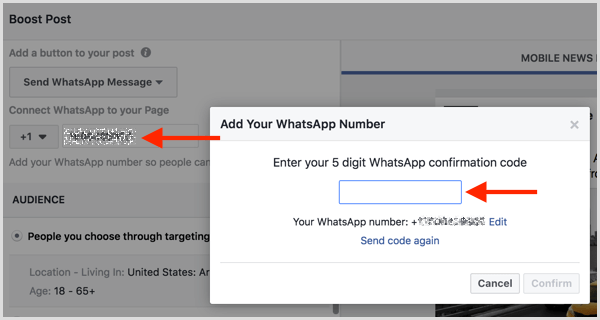
Next, type in the phone number attached to your WhatsApp account. Facebook then sends a 5-digit confirmation code to your phone. When you receive it, enter the code in the pop-up box (shown below) and click Confirm.
Enter the confirmation code you received via SMS to connect your WhatsApp Business account with Facebook.
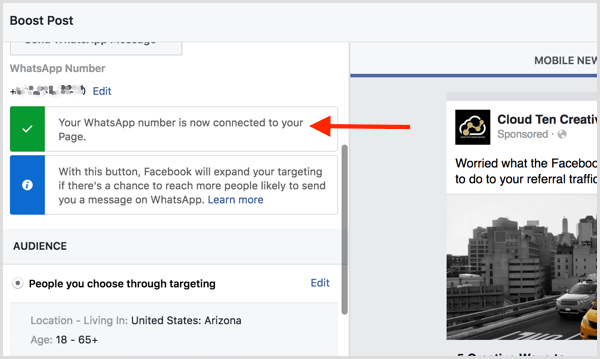
Once your WhatsApp number is connected to your Facebook page, you see a confirmation message along with a green checkmark.
Facebook confirms that you've connected your Facebook page to WhatsApp.
Next, set the targeting, budget, and duration for your ad. Then click Boost to submit it to Facebook.
When users click the Send Message button in your ad, WhatsApp will open on their phone and they can chat directly with your business.

#6: View Statistics for Your Messages

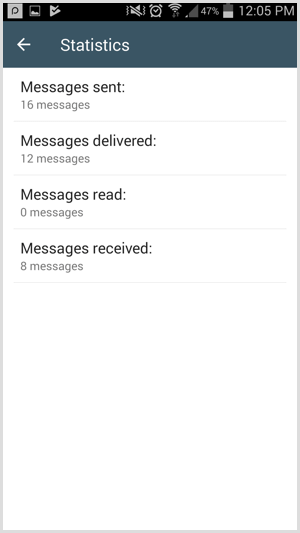
To see a general overview of your customer service performance, open your WhatsApp business account, go to Business Settings, and click the Statistics link. You can see the number of messages sent, delivered, read, and received on the platform.
View Statistics for your WhatsApp Business account.
WhatsApp Business Account Verification
At the moment, you can’t request or pay to have your business account verified or confirmed, but expect WhatsApp to roll out a process for this. Currently, businesses will see one of the following badges in their account profile:
  • Verified: A green checkmark badge indicates WhatsApp has verified that an authentic brand owns the phone number.
  • Confirmed: A gray checkmark badge means WhatsApp has confirmed that the phone number of this account matches the phone number of the business.
  • Business account: A gray question mark badge means the account hasn’t been verified by WhatsApp.
Conclusion
With the release of WhatsApp Business, you can establish a business presence and manage customer interactions on the platform without using a WhatsApp personal account. The app is still in its infancy in terms of functionality, but expect additional features to be released in the coming months.
And along with your business account, you can run Facebook ads with a click-to-WhatsApp button to make it easy for WhatsApp users to message your team.
Share:

How to Optimize Your Facebook Page Preview in the News Feed

Are you capitalizing on the page preview shown when users hover on your page name on Facebook?
In this article, you’ll discover how to optimize your Facebook page preview to boost likes and bring new fans on board.

Why Facebook Page Previews Matter

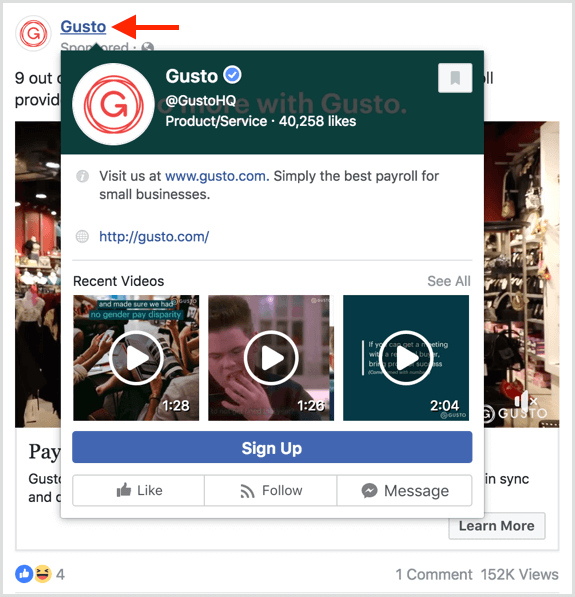
Page previews appear when someone hovers over a link to your Facebook page. For example, people see your preview when they hover over your page in Facebook ads. This helps potential consumers learn more about the businesses advertising in their news feed.
Users see a preview when they hover over a page in Facebook ads.
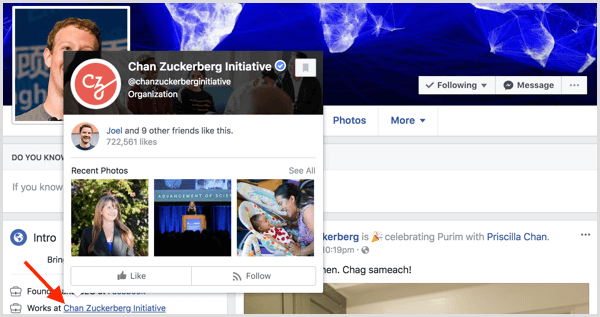
People also see this preview when they hover over the linked brands and businesses in a personal profile’s About section. In this way, your current and former employees can help spread the word about your company and other companies they’ve worked for.
Users see a preview when they hover over the linked brands and businesses in a Facebook personal profile’s About section.
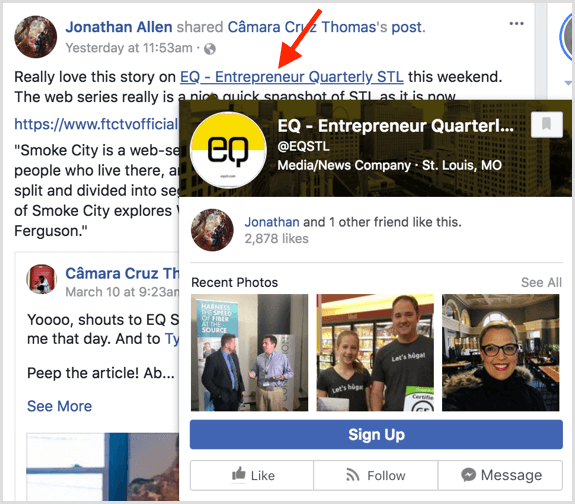
The preview also appears when people hover over pages tagged in post descriptions or in branded content, helping introduce users to new pages through their friends and pages they follow.
Users see a preview when they hover over pages tagged in post descriptions or in branded content.
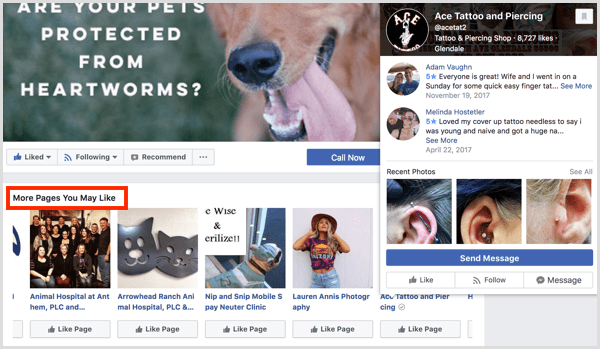
A preview even displays when users hover over the pages similar to a page someone just liked. It’s a great way to potentially capture likes from pages in the same category or location as your business.
Users see a preview when they hover over Facebook pages similar to a page someone just liked.
Why should you worry about Facebook page previews? Your preview could be the first impression a potential consumer gets about your business, resulting in a like. Or it might be the last impression a potential consumer gets about your brand, resulting in an unlike.
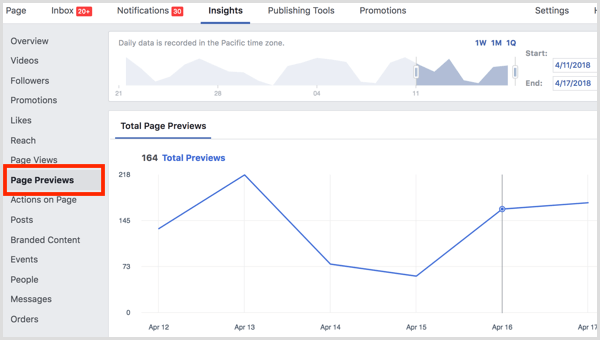
Facebook emphasizes the importance of page previews by dedicating a tab of your Facebook Page Insights to them.
Find page preview metrics on the Page Previews tab in Facebook Insights.
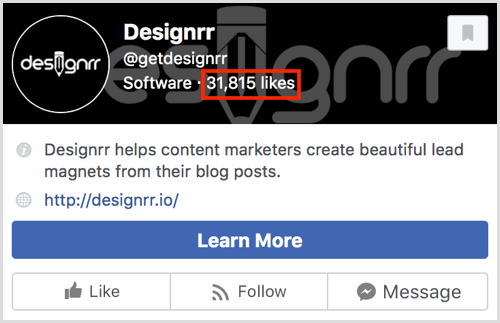
It’s important to note that Facebook page previews will vary based on the person who sees them. Usually, the changes are subtle such as placement of the fan count. Most of the time, the fan count will be at the top of the preview.
The fan count is at the top of this Facebook page preview.
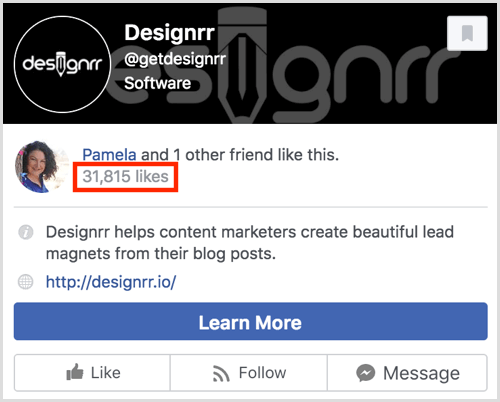
But if someone has one or more friends who like the page, the fan count will drop to highlight the friends who like the page.
The fan count in this page preview is placed below the names of friends who like the page.
With this information in mind, let’s look at the portions of your page that appear in page previews and how you can modify the details.
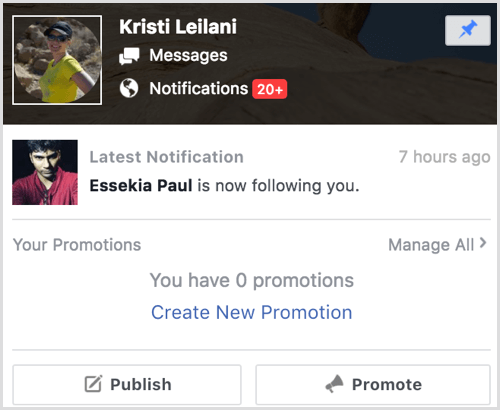
Tip: Before and after making the following changes, find a link to your page and hover over it to see how your preview looks. Note that you have to use a Facebook account that doesn’t have a role on your page. Anyone with a role on your page will see this instead of the preview that customers see:
Anyone with a role on your Facebook page will see this page preview instead of the preview that users see.

#1: Review Your Page’s Name, Username, and Category

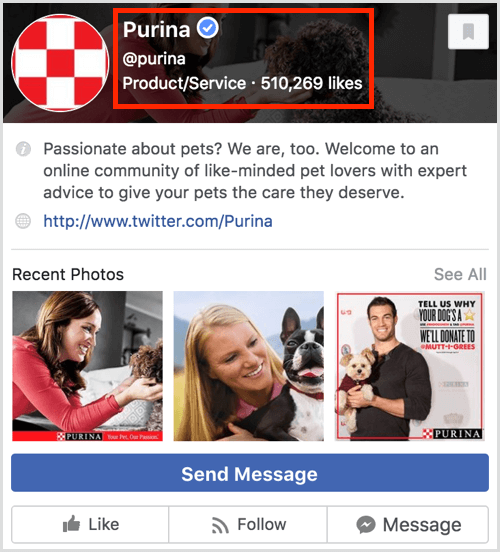
At the top of your page preview, people will see your page’s name, username, and category.
The
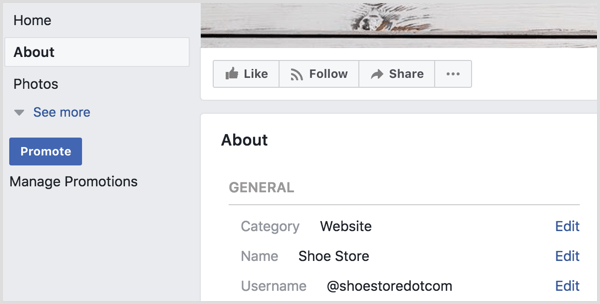
If you haven’t configured these settings, you’ll find them on your page’s About tabClick the Edit link to customize this information as needed.
Facebook page preview edit

#2: Add a Summary and Website Link

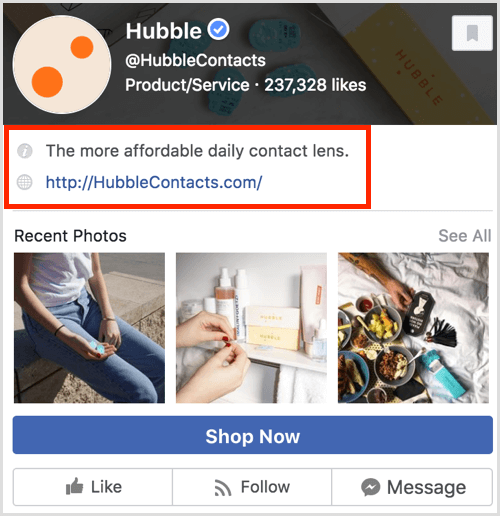
Next on your page preview, you should see your page’s summary and your website link.
Edit your name, username, and category on the About tab of your Facebook page.
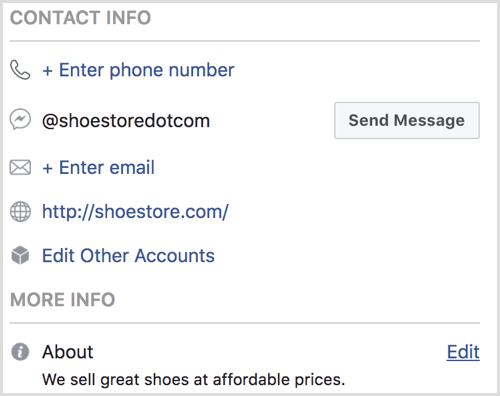
If you don’t see this information, you can visit your page’s About tab and edit the fields to add your website link and edit your page’s summary.
Add your website link and edit your Facebook page’s summary on the About tab.

#3: Confirm Your CTA and Messaging Options

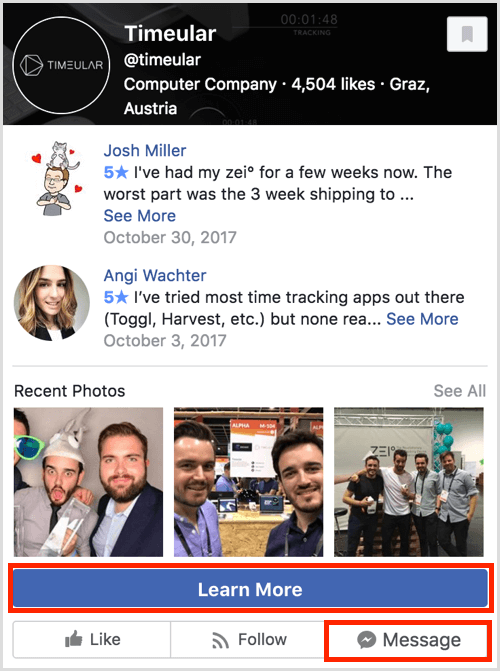
Want to make sure that people who hover over your page name can learn more about or engage with your business? Make sure you give users the option to message your page and set up your page’s call-to-action (CTA) buttons.
Facebook users who hover over your page name can learn more about or engage with your business.
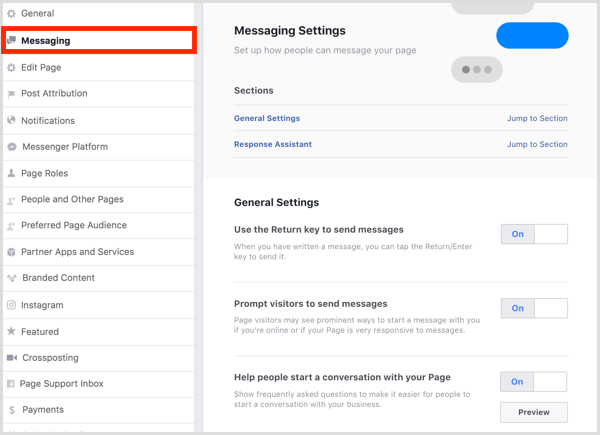
To turn on messagesgo to your page’s settings and visit the Messaging section.
Go to your Facebook page Settings and click the Messaging tab.
To configure your CTA buttonclick Add a Button to set it up or hover over your current CTA button to edit it.
Click Add a Button to add a CTA button to your Facebook page.

#4: Make the Most of Reviews and Ratings

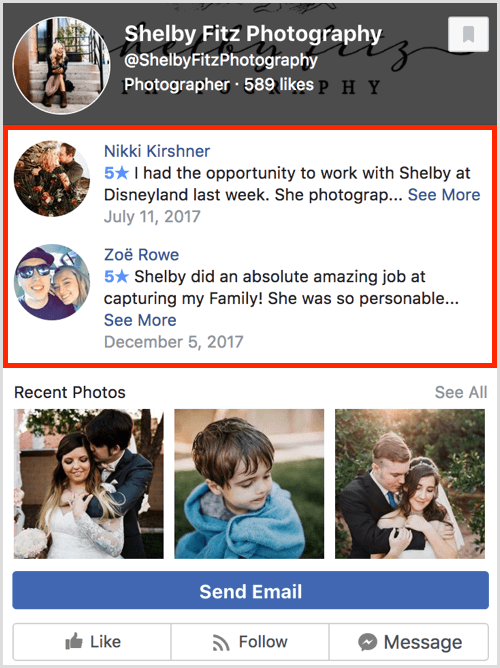
If you have a local business page, reviews and ratings may appear in place of your page’s summary and website link so you want to make sure your page is collecting positive reviews. If not, make an effort to reach out to your most satisfied customers and ask them to let people know how they feel by leaving a review on your page.
Reviews and ratings may appear in the Facebook page preview for a local business.

#5: Highlight Native Photos and Videos

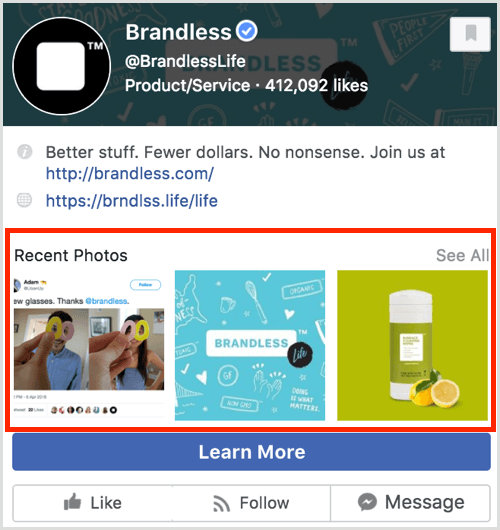
When you post updates to your Facebook page, be sure to post great photos and videos directly to Facebook that best represent your business. Thumbnails for photos…
A Facebook page preview showing recent photos.
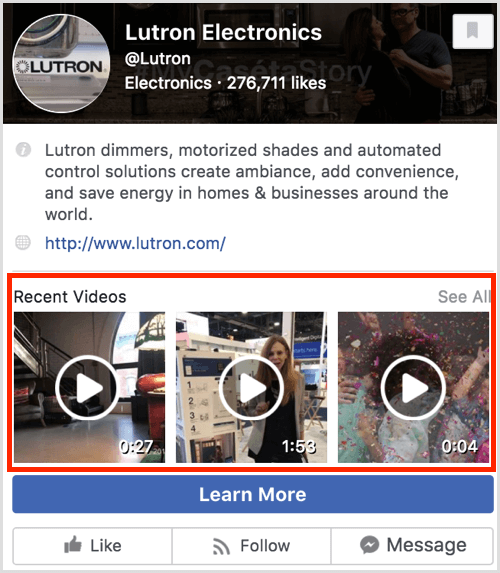
…and thumbnails for videos appear beneath your page’s summary and website link, reviews and ratings, or other information specific to your page’s category.
A Facebook page preview showing recent videos.
Note that these thumbnails appear here only if you’re uploading photos and videos to your page. Thumbnails for photos and videos in link posts won’t appear in this section.
Review Your Page Preview Insights
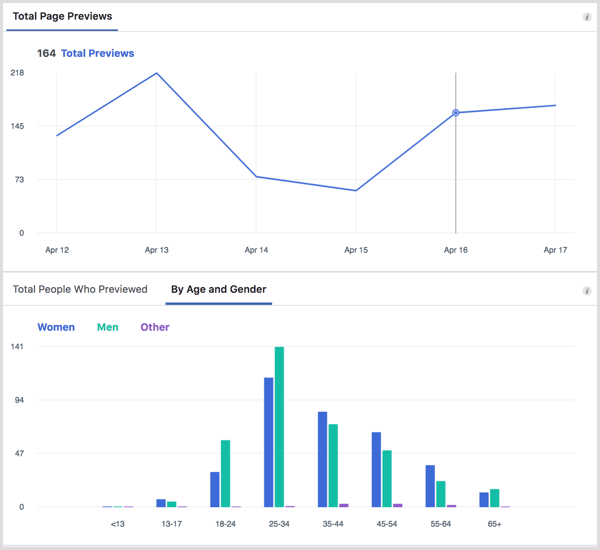
As mentioned earlier, Facebook has a section in your page’s Insights dedicated to your Page Preview analytics. You can see trends in the number of people who have seen your page preview in a specific timeframe.
Page Preview analytics for a Facebook page.
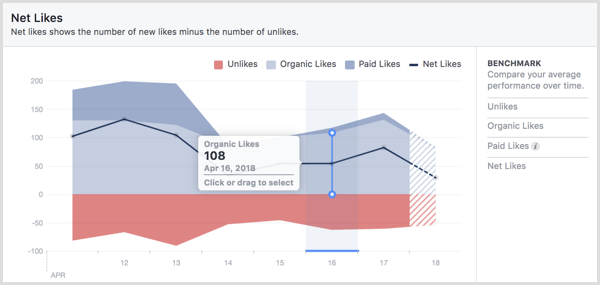
While this data isn’t very detailed, you’ll get an idea of how many people are finding your page through Facebook. You can also compare data like your net likes in the Likes section of your page preview to see if an increase in page previews has led to an increase in likes (or unlikes).
Net Likes in Facebook page Insights.
If you notice the trend for likes climbs when the trend for page previews climbs, you can infer your page preview is making a good first impression. If you notice the trend for unlikes climbs when the trend for page previews climbs, you can infer your page preview needs some improvement to convey the right message to your fans.
Conclusion
As you can see, your Facebook page preview is a powerful way to make a good first impression on potential new fans or customers. It’s also a great way to remind people why they’re a fan of your page and initiate engagement with them throughout Facebook.

Share: