How to create Facebook Ads with WhatsApp button , Optimize Your Facebook Page Preview in the News Feed , Easily Create Videos From Blog Posts
Showing posts with label social media. Show all posts

How to Easily Create Videos From Blog Posts

There’s no need to spend hours recording video with an expensive camera when you have existing content and access to free tools.
In this article, you’ll learn how to use free tools to turn blog posts into videos you can share on social media.

#1: Outline Your Storyboard

You can turn a blog post into a video pretty easily by building a slideshow presentation that communicates key ideas and converting that slideshow into a video file. To start creating the presentation, browse your blog for an evergreen post that offers useful information and transform that blog post into the text for your video.
Find the key points of your blog post and copy them over to a text file. Then shorten your copy so that each slide has no more than 10 to 15 words. Your audience will have only 4 seconds per slide to take in your ideas, and viewers won’t want to pause the video to read them.

#2: Select Free Images to Enhance Your Slides

You’ll also need beautiful photos and clip art to use in your slides. You can find royalty-free photos from sites such as UnsplashPexels, and Stock Up. Many photos from these sources have a Creative Commons license. However, each of these sites has its own terms of use, and individual images may have different licensing policies. Be sure to read the fine print before you include a photo in your video.
Also, when you use an image under a Creative Commons license, it’s good practice to credit the photographer and source for your photo. You can add these to a final credits slide in your video and link back to the photographer’s and source’s websites in the YouTube video description.
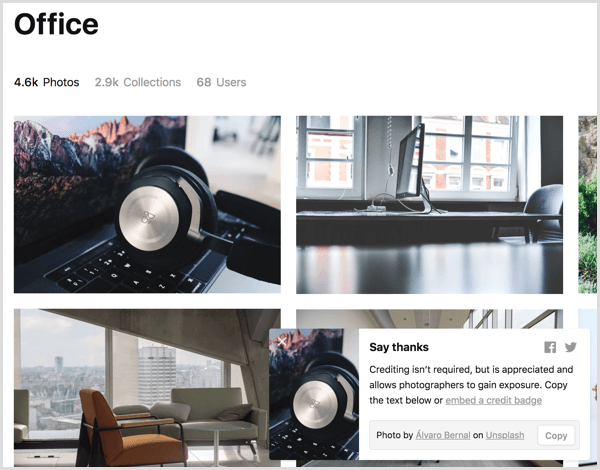
Unsplash stock photo search

#3: Build a Slideshow in Google Slides

After you gather all of the source content for your video, it’s time to create the presentation. The details in this article are based on Google Slides because it’s free and works on many operating systems. However, you can adapt the ideas in this article to PowerPoint or Keynote if you prefer.
First, create a new Google Slides presentation. From your home in Google Drive, simply click New and select Google Slides. If you want to use a theme or have a presentation template designed for your brand, apply that theme before you start. (You can apply the theme after you begin creating slides, but you can end up doing extra work to make the slides’ content fit the new theme.)
You’ll find a few themes within Google Slides, as well as from third parties online. To choose a preset theme or import a themeclick the Theme option in the toolbar and a window for browsing and importing themes appears.
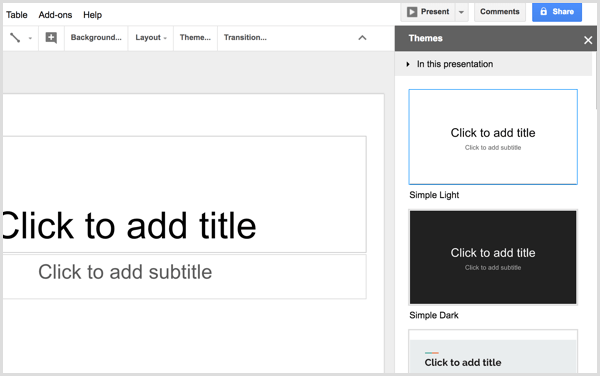
Google Slides select theme
If the more highly designed themes are too busy, an alternative is to select a simple theme and then customize your slide background color and possibly the text with colors that reflect your brand. Just make sure you choose colors that have great contrast so your text is easy to read.
Next, you can start creating individual slides and adding text from your storyboard. To begin, create a title slide that reflects the title of your blog post. Your theme may offer one or more title slide layouts, which are usually a great place to begin. Click Layout from the Google Slides toolbar and select a layout that looks like a good starting point.
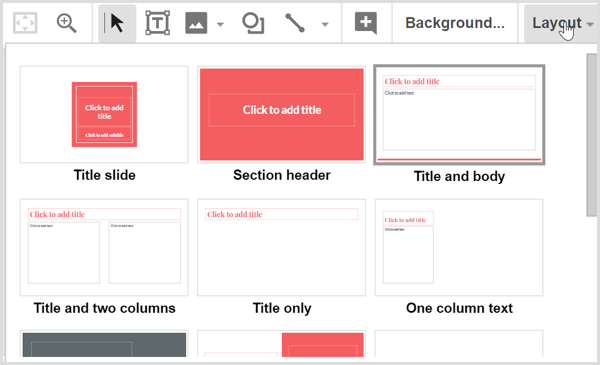
Google Slides select layout
Copy and paste text from your storyboard into the slides. When you have a great image to go with your slides, click the Image icon to upload the file from your hard drive. Remember that choosing from the preset slide layouts that come with your theme is the easiest way to create a professional-looking result. As you build slides, you’ll start to see your video come together.
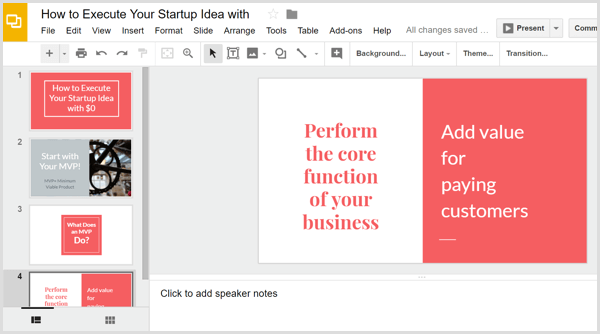
Google Slides build presentation
Tip: You may be familiar with scene transitions, animations, and other effects built into presentation programs, and Google Slides is no exception. However, after you convert your slideshow into a video file, none of those animations are preserved. (Microsoft PowerPoint is an exception, as explained a little later.) Instead, you can build simple animations by duplicating slides and then adding to or moving items so they appear animated as the video plays.
For example, say you want two ideas to appear on the same slide, one after the other in your video. This would not only add a nice effect, but also give viewers more time to digest the ideas. First, create copies of your slide by selecting it. Then click the Slide menu and choose Duplicate Slide.
This text animation started with four slides (one original and three copies). To create the animation, you can simply delete text from the first, second, and third slides so the text appears on-screen in 4-second increments, building up to your final point in 16 seconds.
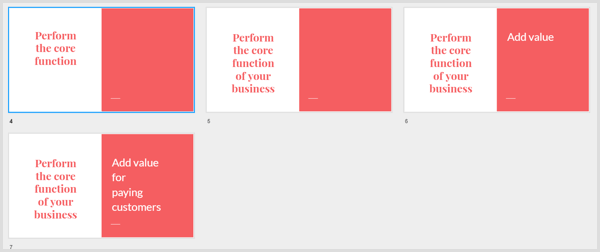
Google Slides create animation
When you’re done creating the slideshow in Google Slides, click File in the menu bar and select the Download As option. From the submenu, choose either Microsoft PowerPoint (pptx) or ODP Document (.odp). Google Slides converts your presentation into the selected file format and then your presentation downloads to your computer.

#4: Convert Your Slideshow to a Video File With Online Convert

To turn your presentation file into a video, you can use a free online service like Online Convert. On the home page, select Convert to MP4 from the Video Converter drop-down list, and you’ll see the MP4 converter.
After you upload your presentation fileselect YouTube as the video preset, leave the other options at their defaults, and click the Convert File button. When the site is done converting your file into an MP4, the video file downloads automatically to your computer.
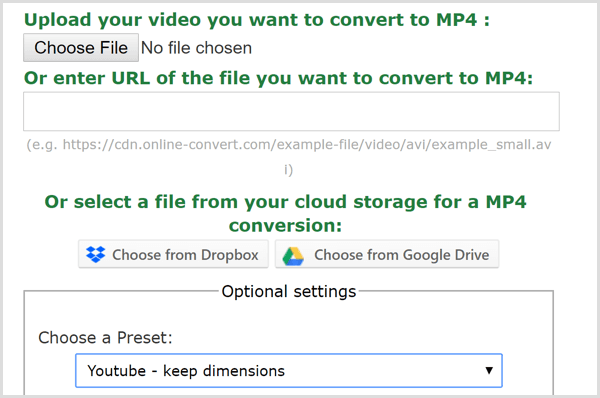
Online Convert app create MP4 file

#5: Add Music to Your Video

If you want to add a music track to your video, you’ll need video editing software. HitFilm Express is a great free option for both Windows and Mac users. iMovie is excellent free video editing software that comes with macOS.
The simplest way to add audio is to add royalty-free background music to the video file. Both Bensound and HookSounds are good places to start looking for audio that works well with your content. After you have an audio file that you like, open your video editorand combine the audio and video files.
In HitFilm Express, you begin by importing both the video and audio into your Media library, which is a tab in the lower left of the Edit screen.
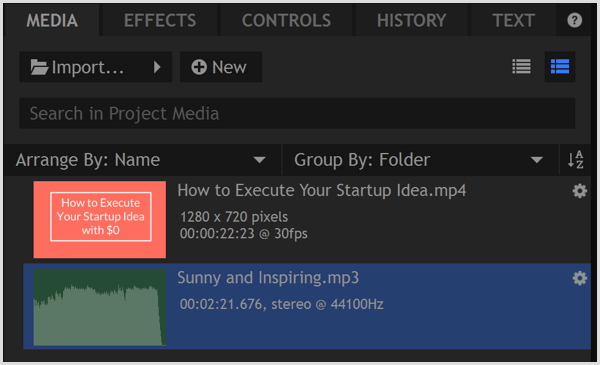
HitFilm Express import files to media library
After you select the audio file on the Media tab, you can trim the audio file to the length of your video in the Trimmer. You find the Trimmer in the upper left of the Editor. The time noted in the trimmer indicates the length of your selected media and will help you match the length of the two files.
To set an in point, which indicates where your audio starts, move the Trimmer playhead to the desired position and then click the Set In Point icon. You set an out point in the same way, using the Set Out Point icon. You then use the Trimmer’s Insert Clip icon toadd the trimmed audio to the timeline.

HitFilm Express set in and out point
Lastly, use the Trimmer’s Insert Clip icon to add the video file to the timeline, too. Then you can drag the two clips so that they line up, as shown below. Preview the timeline so you can see how the audio and video play together. When you like the result, export the file to create an MP4 file optimized for the web.
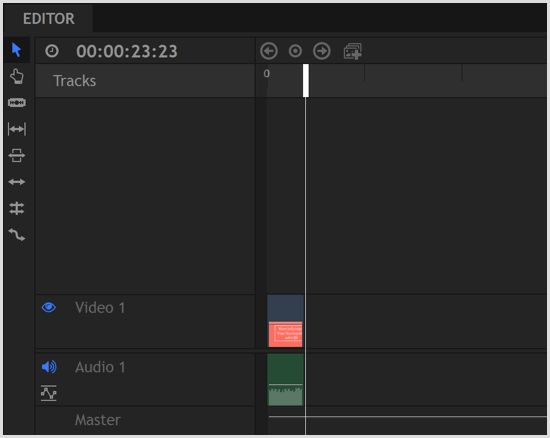
HitFilm Express timeline
Exporting a Video Directly From PowerPoint
PowerPoint contains an option to convert your slideshow into a movie. Because this converter is within PowerPoint, it preserves your transitions and animations. PowerPoint also allows you to add audio narration, and the movie export option preserves those recordings as well.
To export your slideshow as a movie from PowerPoint, click File in the menu bar and select Export from the drop-down menu. Then choose the Create a Video option. For a quality option, select Internet Quality. If you added recordings, select the option to include recordings and narration. (You can preview how the whole slideshow plays before you export the movie.)
When you’re done, click Create Video. It’s as simple as that.
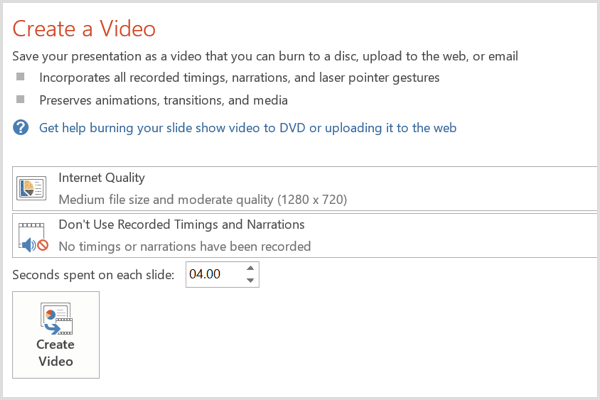
PowerPoint create video options

#6: Upload Your Video to Social Media

Your video is now ready. All that’s left for you to do is upload the video to your social media profiles, especially YouTube, Facebook, and LinkedIn. You can then integrate the video into your social media marketing campaigns to build brand awareness and drive conversions.
On Facebook, you can even pay a few bucks to boost your video to reach a wider audience and get more views.
Conclusion
As video continues to be a major contender in social media marketing, you need an easy and inexpensive way to create videos. Starting from a blog post gives you the source content you need, and the free tools outlined here allow you to create simple but professional videos that represent your brand well.

Share:

How to Use Facebook Ad Dayparting to Optimize Your Results

How to Use Facebook Ad Dayparting to Optimize Your Results


Have you considered dayparting your ad campaigns?
In this article, you’ll discover how to use dayparting to schedule Facebook and Instagram ads to pause and run on specific days and times.

What Is Dayparting?

Dayparting is the practice of scheduling your ad campaigns to run only at certain times, on certain days, or at certain times on certain days to make your ads more appealing and relevant to users. It helps you optimize your campaigns by showing your ads only when they’re most likely to get results.
For example, if you find your audience will click on a campaign at any point during the day but are most likely to convert during evening hours, it makes sense to run campaigns only during those hours. This would increase your conversion rate and simultaneously reduce wasted clicks you’re paying for.
Some advertisers post during hours when their audience is most likely to see the ad; others post during peak hours when users are most likely to engage, click, or convert. For some businesses, these timeframes won’t overlap and specific windows of opportunity vary from business to business.
Dayparting can be particularly beneficial if your peak hours aren’t the same as traditional busy hours on Facebook. This means your competition will be lower overall during your peak activity times, likely bringing your cost down as a result.

#1: Pinpoint Days and Times Your Audience Is Most Active

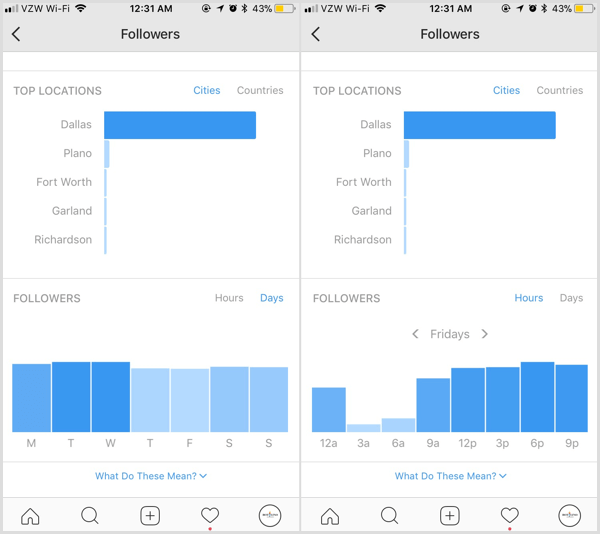
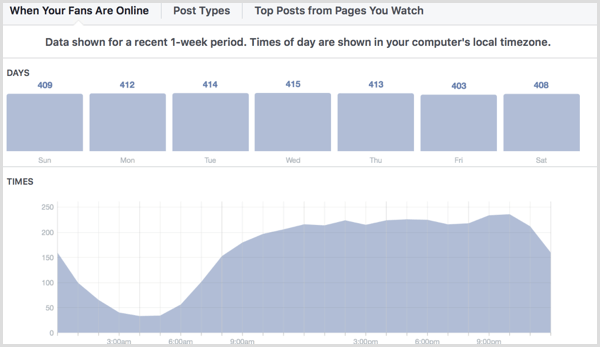
Facebook Insights and Instagram Insights can help you find the times your audience is most likely to take the desired action on your ads. Each platform has analytics reports that show you what days and times of day your audience is most active online. In Facebook Insights, go to the Posts tab and you’ll see a report showing when your audience is most active.
Facebook Insights shows when your fans are online.
On Instagram Insights, navigate to the Followers section and then tap See More. Scroll down to find the charts detailing the hours and days when your followers are most active. You can view peak activity hours for every day of the week and see which days overall will benefit you most.
Instagram Insights shows when your followers are most active.
All else being equal, use this information as a starting point. Choose peak activity times and run your campaigns during those days and hours, and start split testing best ad display times to see what works for you.
You’re likely to notice that your audience’s active times are different on Facebook and Instagram, which is why it’s important to check both platforms’ data. If necessary, you can always run separate dayparting campaigns with Facebook-only and Instagram-only placements.

#2: Set Up a Dayparting Campaign Schedule in Facebook Ads Manager

Setting up dayparting ads for Facebook and Instagram ads is exceptionally easy. Create a new campaign and choose an objective, targeting, and placements as you normally would.
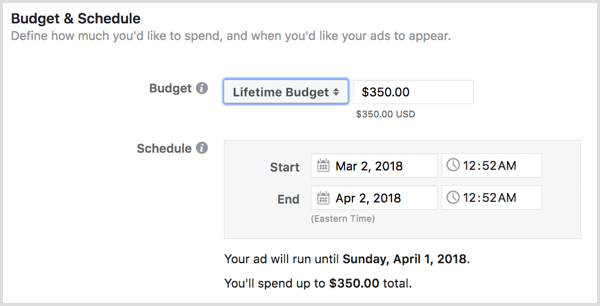
At the bottom of the ad set creation, you’ll see the Budget & Schedule section. To enable dayparting under the current system, you need to choose a lifetime budget for your ads instead of a daily budget.
Choose a lifetime budget for your ads.
Once you’ve set a lifetime budget, you’ll see two Ad Scheduling options. Select Run Ads on a Schedule.
Select Run Ads on a Schedule when you set up your Facebook campaign.
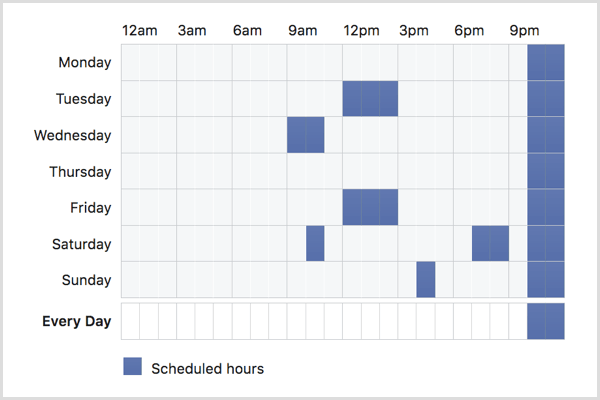
A block schedule pops up, showing the days of the week and hours of the day. You can choose specific hour blocks that are unique for each day or select certain hours for your post to run every day of the week. Do this by clicking on the schedule to choose when your ad will run.
Click on the schedule to choose when your Facebook ad will run.
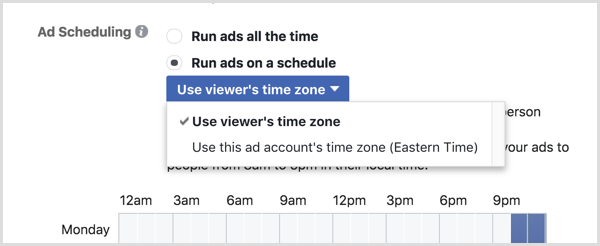
Before you finalize your dayparting schedule, you have one more important decision to make. You can choose to have your ad run during your designated times for your time zone or the viewer’s time zone. If you have an audience spread across multiple regions but know that they’re all most likely to be online or engaging at 9:00 PM, choose the latter.
Choose the Use Viewer̢۪s Time Zone option for your Facebook campaign.

#3: Adopt Best Practices for Dayparting

If you’re ready to set some of your ad campaigns to use dayparting, there are a few best practices you can implement to help you get better results and protect yourself from potential risks.
Use Manual Bidding
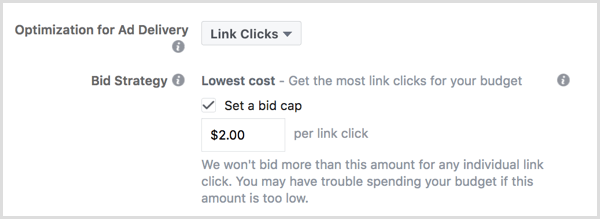
If you’re on a tight budget and want to ensure you don’t spend more per click or action than a set amount you can afford, consider using manual bidding. You can set a bid cap, which guarantees you’ll never spend more on an action than what you’ve manually chosen.
Facebook ads dayparting manual bidding
Note that this bid cap will be applied to each ad, not as an average cost cap, so this can limit more costly placements that may have otherwise balanced out in the average by lower-cost placements.
Consider Accelerated Delivery
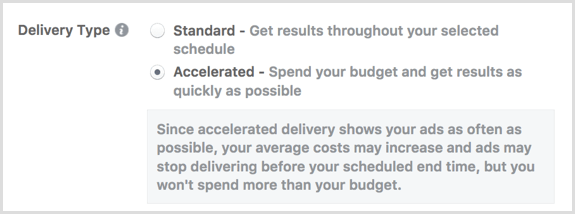
If you want to aggressively advertise something like a promotion or an upcoming event and you’re on a tight deadline, you can choose the Accelerated Delivery option in scheduling. Facebook will then show your ads as many times as possible during your allocated schedule, as opposed to trying to spread your budget out evenly over time.
Note that this tactic may cause costs to increase, so if you’re sticking to a budget, setting a bid cap can work in your favor.
Choose the Accelerated option for Delivery Type.
Focus on Blocks of Time
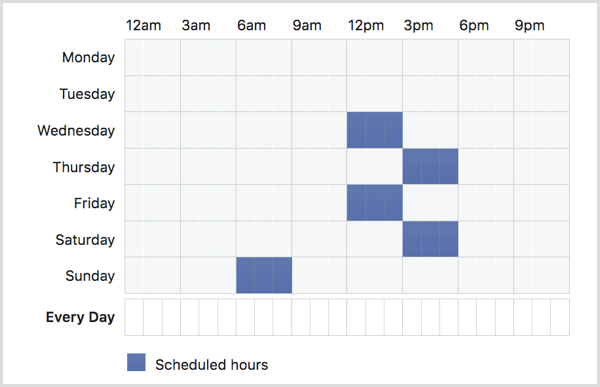
Typically shooting for blocks of time instead of one specific hour will help you get better results when you’re dayparting (and better reach just because of more placement opportunities).
To start, I typically test chunks of time in about 3-hour blocks. This is still specific enough to tell if the dayparting is having a positive effect, but it’s not immediately limiting in the same way as choosing a single hour would be.
Test 3-hour blocks to gauge the effectiveness of your dayparting.
Considerations for Dayparting
There are two big downsides to consider if you’re thinking about using dayparting strategies for your ad campaigns:
  • Dayparting automatically limits your campaigns. This isn’t necessarily a bad thing off the bat, but it will keep certain ad placement opportunities off the table. All of the potential impressions you could have had during other hours of the day have been eliminated. You never know… a few of them could have even been clicks or sales.
  • Perhaps more significantly, dayparting can sometimes result in increased ad costs. This will most likely happen if your peak activity times are the same as everyone else’s and there’s a lot of competition for those placements. More competition can mean higher ad costs, which can escalate quickly. You may see your CPC or ad spend jump, especially since you don’t have the other placements to average you out.
Dayparting isn’t for everyone, and it’s not for every campaign. If you notice a big spike in ad costs for the ads you’ve set to daypart, pause or stop them immediately.
Dayparting typically isn’t effective on large-appeal products that have diverse audiences such as razors or dog toys or baking sheets. Businesses that sell products like these can easily end up isolating some portions of their audience if they use dayparting, just because their audience is so diverse. This can spread peak activity levels across a larger number of times.
The exception to this rule is if you’re running niche campaigns designed to appeal to segmented groups of your audience. An example would be a general shoe store selling non-slip shoes during hours that servers or bartenders are most likely to be online.

Conclusion
Advertisers spend a lot of time and money to optimize their Facebook ad campaigns, working hard to squeeze every possible conversion out of every penny they spend. Dayparting, which allows you to run your ads only at specific times, is one optimization method that advertisers may test at some point.
If you’ve noticed or you believe that having ad placements shown only during certain hours or days would improve your ads’ performance, run a campaign testing your theory. Ultimately, split testing is the only true way to determine if dayparting is right for your campaigns and business.
What do you think? Do you ever use dayparting in your ad campaigns? How do you find the best days and hours when you want to optimize your campaign? Share your thoughts, knowledge, and experience in the comments below!
Share:

How to Use LinkedIn Sales Navigator outside Gmail and Google Chrome

How to Use LinkedIn Sales Navigator outside Gmail and Google Chrome

Rapportive was one of my favourite Google Chrome extensions of all time. If you are new, Rapportive added a little widget in your Gmail sidebar, you could hover your mouse over any email address and the widget would show details for that contact including their current job title, social profiles, contact details and more.
This came handy in two situations. If you receive an email from an unknown person, you can quickly see their social profiles without leaving Gmail. If you are sending an email to someone but unsure if the address is correct or not, you can open the Gmail compose window, type the email address and hover your mouse to see if that person has an associated profile or not.
gmail-linkedin-profile
LinkedIn acquired Rapportive and rebranded the add-on as Sales Navigator targeted more towards the sales professional. The good part is that the original functionality continues to exist so you can still hover over any email address to view the corresponding Linked Profile right inside your Gmail Message.

Remove the LinkedIn Clutter in Gmail Sidebar

While the basic version of LinkedIn Sales Navigator is free, it is more cluttered and feels like a distracting advertisement for the premium version that is continuously displayed in your Gmail sidebar. See the screenshots below:
Gmail LinkedIn addon clean
If you would like to continue using Rapportive but sans the clutter, there are other CSS injecting Chrome extensions that can help. The idea is that you inject custom CSS into the Gmail website that hides any element on the page.
To get started, install User CSS in Chrome. Switch to the Gmail website, click the User CSS menu icon and add the following CSS code. The other good alternatives are StyleBot and User JS CSS if you prefer to inject JavaScript code in addition to user styles.
CSS for Gmail LinkedIn

Use LinkedIn Sales Navigator outside Gmail or Google Chrome

The Linked Sales Navigator add-on is the easiest way to find the LinkedIn profile of a person that is associated with a particular email address. Here’s how it works:
When you hover your mouse over an email address inside a Gmail message, the Chrome extension makes an HTTP request to a particular URL. The HTML response of that URL is rendered in the Gmail sidebar.
The interesting part is that this URL can be used outside the Chrome extension as well so you can just append any email address to that URL and get the corresponding LinkedIn profile.  The URL format is:
https://www.linkedin.com/sales/gmail/profile/viewByEmail/email@domain.com
Replace email@domain.com with any other email address, open the URL in any browser and you’ll have the basic LinkedIn profile, just like the one displayed inside Gmail.
Give it a shot by opening this page in your browser. The only constraint is that you should be logged in your LinkedIn account as anonymous requests are not allowed.
Share:

4 Tools to Help Rank Your YouTube Videos

4 Tools to Help Rank Your YouTube Videos


Looking for tools to optimize your titles, keywords, and tags?
In this article, you’ll discover a four-step process to reveal high-performing keywords for your YouTube content.

#1: Gauge Topic Interest with Google Trends

Before you create a YouTube video, the first step is to find a topic that’s interesting to your audience. It won’t matter how well you optimize your video for keywords if people aren’t interested in its content.
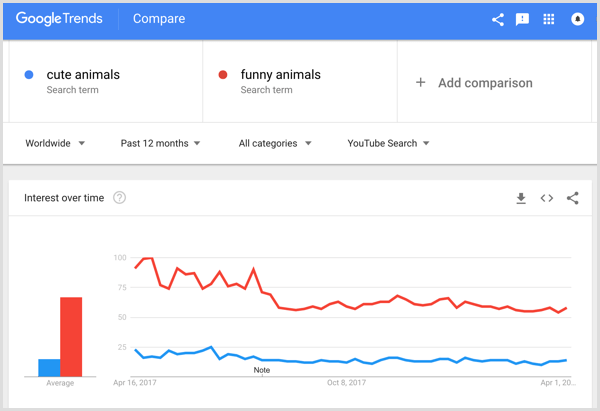
You can use Google Trends to see which proposed topics have enough interest on YouTube. Simply enter your topic into the Explore bar, and on the results page that appears, select YouTube Search from the drop-down menu just above the line graph. The graph will then show you how much interest your topic has had over the last 12 months.
In this example, “funny animals” is beating “cute animals” in Google Trends.Google Trends keyword comparison.
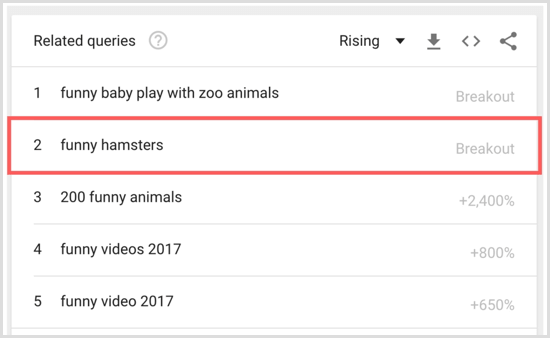
You can customize the results by country and scroll down to find related search queries as well. Under related queries, you see that “funny hamsters” is a breakout trend at the moment. So perhaps you’ll want to include some cute hamsters doing funny things in your video to increase watch time.Google Trends related queries.
Bonus Tool: Quora is a great platform you can use to find plenty of topics for creating videos. The website is filled with questions related to all kinds of industries and categories. Browse a category related to your industry to find a few topics on which you can offer insight.

#2: Assess Keyword Search Volume and Competition With Ubersuggest

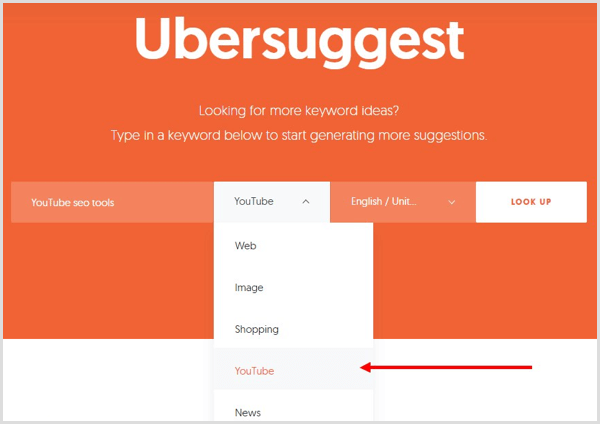
Your video topic should give you a starting place for choosing keywords. After you develop your initial keyword ideas, you can analyze them using a free tool like UbersuggestEnter your keyword in Ubersuggest and select YouTube from the drop-down menu. After you initiate the search, the tool takes only a couple of seconds to analyze the keyword.
Do a keyword search with Ubersuggest.
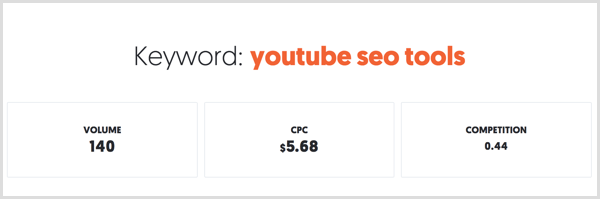
Ubersuggest will not only analyze your keyword to find how many searches it gets, but also show you a competition score that indicates how difficult it is to target that keyword. In this example, the keyword has about 140 searches per month, which isn’t good enough to get lots of views of a video.
View Ubersuggest search results.
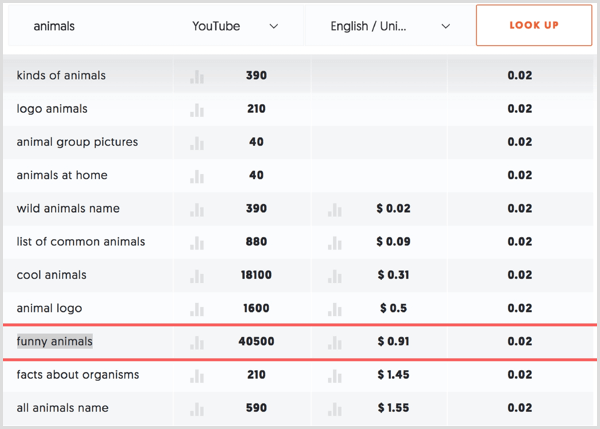
Now let’s say that instead of “YouTube SEO tools,” you want to do a video about animals. The keyword “animals” alone generates 450,000 searches on YouTube and has a lower competition score of .07. Immediately, “funny animals” stands out because it has 40,500 YouTube searches and a very low competition score of .02.
Look for keywords with low competition scores in your Ubersuggest search results.
Examining further, you might find that “cute animals” generates 90,500 searches and also has a low competition score of .02. These are keywords that you might want in the title of your video. For instance, a potential title could be “Cute and Funny Animals You Have to See Before You Die.”

#3: Mine YouTube Autosuggestions for Additional Keywords

Taking a look at autosuggestions in the YouTube search tool can help you find more popular keyword ideas. Head over to YouTube and enter your topic. Then see what kind of autosuggestions YouTube displays for that keyword.
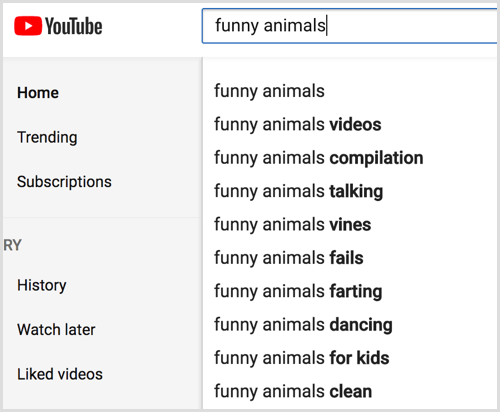
Autosuggestions are one of the best ways you can use to find effective keywords because these keywords always pop up whenever someone searches for a topic. To illustrate, if you enter “funny animals” into the search bar, it’ll autosuggest a set of great long-tail keywords for you to choose from.
Look at YouTube search autosuggestions for your keyword.
After you gather additional keyword ideas from the YouTube search tool, you can go back to Ubersuggest to research this set of keywords. Specifically, you want to pay close attention to their search volume. When you’ve found the best keywords, you can use them in your video title and description.

#4: Research Video Tags With VidIQ

Choosing the right tags for your YouTube video is just as important as targeting keywords. With the right tags, you can rank for the right keywords and in the most-searched categories.
To figure out which tags to use, analyze your competition with VidIQ, a simple, free Chrome extension. To start using this tool, you need to install the VidIQ extension in your browser and create a free account. Then you can use VidIQ to search for the keywords you’ve selected from your research and view the top-ranking videos for those keywords.
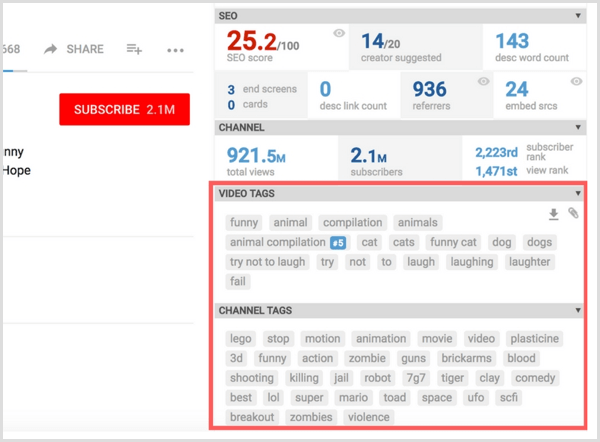
When you open a video on YouTube, you’ll see a new panel on the right. You can view a detailed breakdown of the video’s SEO, including an SEO score, number of end screens and referrers, and more. All the way down at the bottom, a section shows all of the tags used in the video and by the channel.
VidIQ shows SEO video and channel tags.
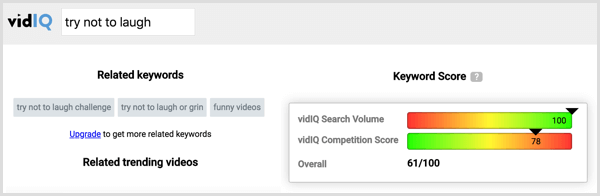
You can also see how this particular video ranks for each of those tags. Simply click a competitor’s tag to find the search volume and competition for that tag.
Click a competitor's tag in VidIQ to see the search volume and competition for that tag.
View other videos in the search results and repeat the process. Pick tags with the highest volume and lowest competition, and incorporate those into your own video when uploading it to YouTube.
Remember that using lots of tags won’t increase the chances of more people seeing your video. Instead, focus on finding the right tags. Although YouTube doesn’t limit the number of tags you use, go for quality over quantity.
Other Ways to Improve Video Rank
In addition to keywords and tags, YouTube uses several factors to rank videos. The video’s click-through rate (CTR) is one of the most important factors. YouTube carefully analyzes videos that generate the highest retention and ranks them higher in search results.
For example, if your video ranks number 10 in the search results for a specific keyword, but for some reason, more people are clicking your video instead of the others, YouTube will slowly bring your video to the top of the search results.
This is why it’s important to use a custom thumbnail. It can attract attention to your video and get more people to click it.
In addition, comments and likes on your videos help improve interactions and tell YouTube’s algorithm that people are interested in your videos. This interest then increases your chance to rank higher in search results.
Share:

How to Retarget People Who Click on Curated Content

How to Retarget People Who Click on Curated Content


Wondering how to retarget people who click on the third-party content you share?
In this article, you’ll discover two ways to retarget people who click links to content you share, whether that content is yours or someone else’s.
Share: